
KING
Epic Member
-
Joined
-
Last visited
Everything posted by KING
-
HAHAHHAHA buti meron neto, ito ang i send ko sa kanila❤️?
-
-
Tuwang tuwa ko noon nung nanalo ako dito❤️
-
-
HAHAHAHA mema lang, d ko dn namn need. ❤️
-
SANAAA ALLL LAHAT HAHAHAHA
-
BASTA ANG GWAPO KO HAHAHAHA
-
Wow, Thank You For The Game and sa SPONSOR ❤️?
-
Need ko kasi pero ngayun HAHAHA sensya na
-
Magsasagot ako❤️
-
Thank You For Sharing ❤️?
-
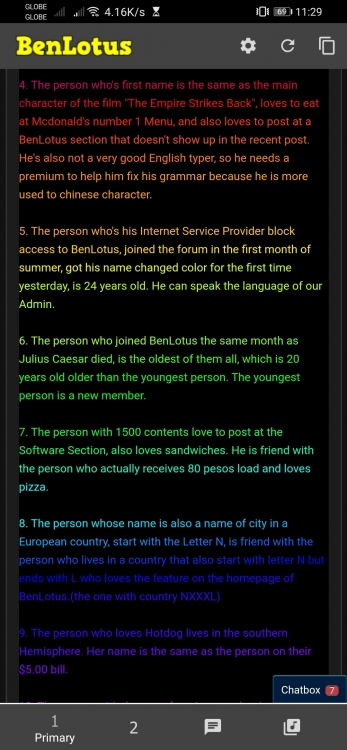
Hi sir @JiroDavid, kami po ba bahala kung ilang statements ang gagawin namin? at ano po sir ang level of difficulty na gagawin namin? ❤️ Nag-base lang po ako sa last game mo po sir?
-
Thank you po sa ganitong Offer❤️?
-
Thank You po For GUIDELINES ❤️?
-
Thank You For Sharing ❤️?
-
Thank You For Sharing ❤️
-
Thank You For Sharing ❤️
-
-
Thank you for sharing ❤️?
-
Thank you for sharing ?❤️
-
Thank You For Sharing again and again and again❤️?
-
Huawei Y9 Prime 2019 Hisilicon Kirin 710F 4000mAh 4/128 Android v/ 10.0
-
Nice, dani talaga. Salamat sa pagbahagi❤️?
-
Thank You For Sharing Again?❤️
-
Thann You Again For Sharing @Oranek?❤️