Vinay
BenLotus Member
-
Joined
-
Last visited
Everything posted by Vinay
-
thank you for sharing
-
Thank you sir
-
Thank you for sharing
-
Thank you for sharing
-
Thank you so much
-
thank you so much for this
-
thank you for sharing
-
thank you do much for sharing
-
-
THANK YOU FOR SHARING MY DEAR FRIEND
-
Hi dear. Welcome. How are you doing??
-
-
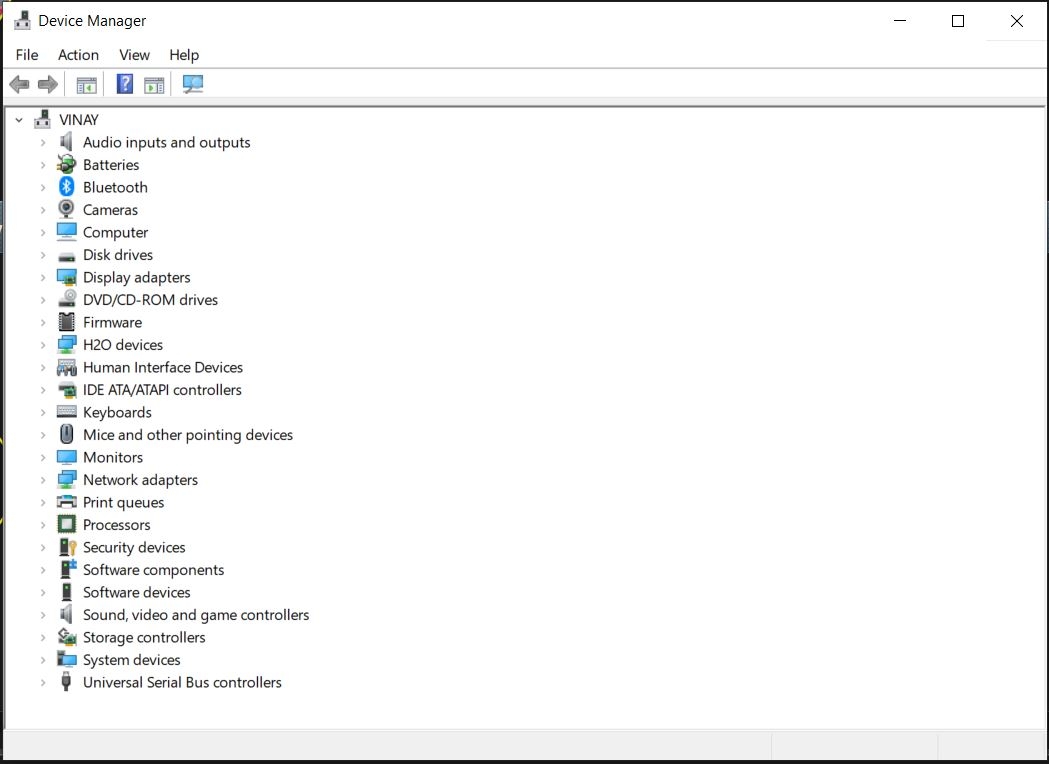
It happened after my laptop went black suddenly while working. I send it to the repair shop and cleared the power section, where it was affected. but when i reached home and login, i couldnt see the audio working. i tried all the methods that i know, even i reset the entire system. I think during the first breakdown, it also got affected the sudio chip.
-
it is a hardware problem sir. no problem. thank you for the reply.
-
yes. i recently updated to the latest version of windows 10
-
yes. but unless i connect the usb adapter the audio wont work. i think its a hardware problem. but how to resolve that problem? or any other solutions?
-
how to check?
-