




paultergeist
BenLotus Member
-
Joined
-
Last visited
Everything posted by paultergeist
-
i am taggging @WhiskeyBravo here. She might help answer ???
-
hello @punyeta @ujesoro welcome senyo!
-
hello @majorbaluga @jrcknblz welcome kayo dito! ?
-
hello @Moisee welcome ka dito!
-
-
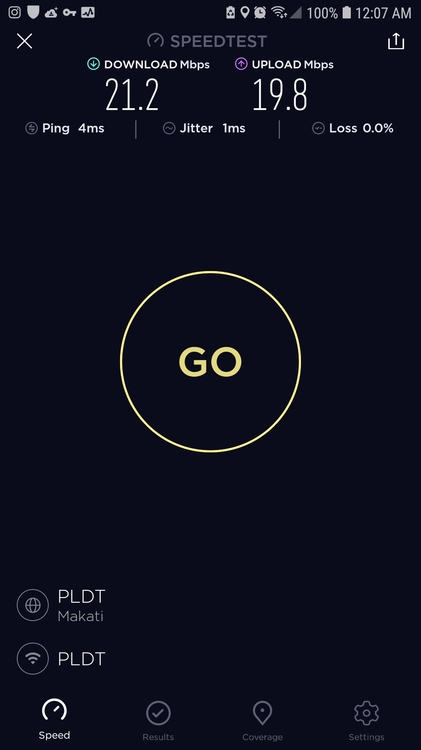
hi @kentaru.. welcome ka dito! ?hey! may ganto pala? very nice hahanice. thanks for sharing!bookmarked! might be helpful in the future. salamat!here's mine. raw (no vpn).
 hmmm. sounds like a plan?this is sad.








Account
Navigation
Search
Configure browser push notifications
Chrome (Android)
- Tap the lock icon next to the address bar.
- Tap Permissions → Notifications.
- Adjust your preference.
Chrome (Desktop)
- Click the padlock icon in the address bar.
- Select Site settings.
- Find Notifications and adjust your preference.
Safari (iOS 16.4+)
- Ensure the site is installed via Add to Home Screen.
- Open Settings App → Notifications.
- Find your app name and adjust your preference.
Safari (macOS)
- Go to Safari → Preferences.
- Click the Websites tab.
- Select Notifications in the sidebar.
- Find this website and adjust your preference.
Edge (Android)
- Tap the lock icon next to the address bar.
- Tap Permissions.
- Find Notifications and adjust your preference.
Edge (Desktop)
- Click the padlock icon in the address bar.
- Click Permissions for this site.
- Find Notifications and adjust your preference.
Firefox (Android)
- Go to Settings → Site permissions.
- Tap Notifications.
- Find this site in the list and adjust your preference.
Firefox (Desktop)
- Open Firefox Settings.
- Search for Notifications.
- Find this site in the list and adjust your preference.