Asmodeus
BenLotus Member
-
Joined
-
Last visited
-
Thank you
-
23,35,47,68,77
-
Let's see
-
-
5,18,34,57,52
-
12,18,36,40,64
-
13,25,35,48,66
-
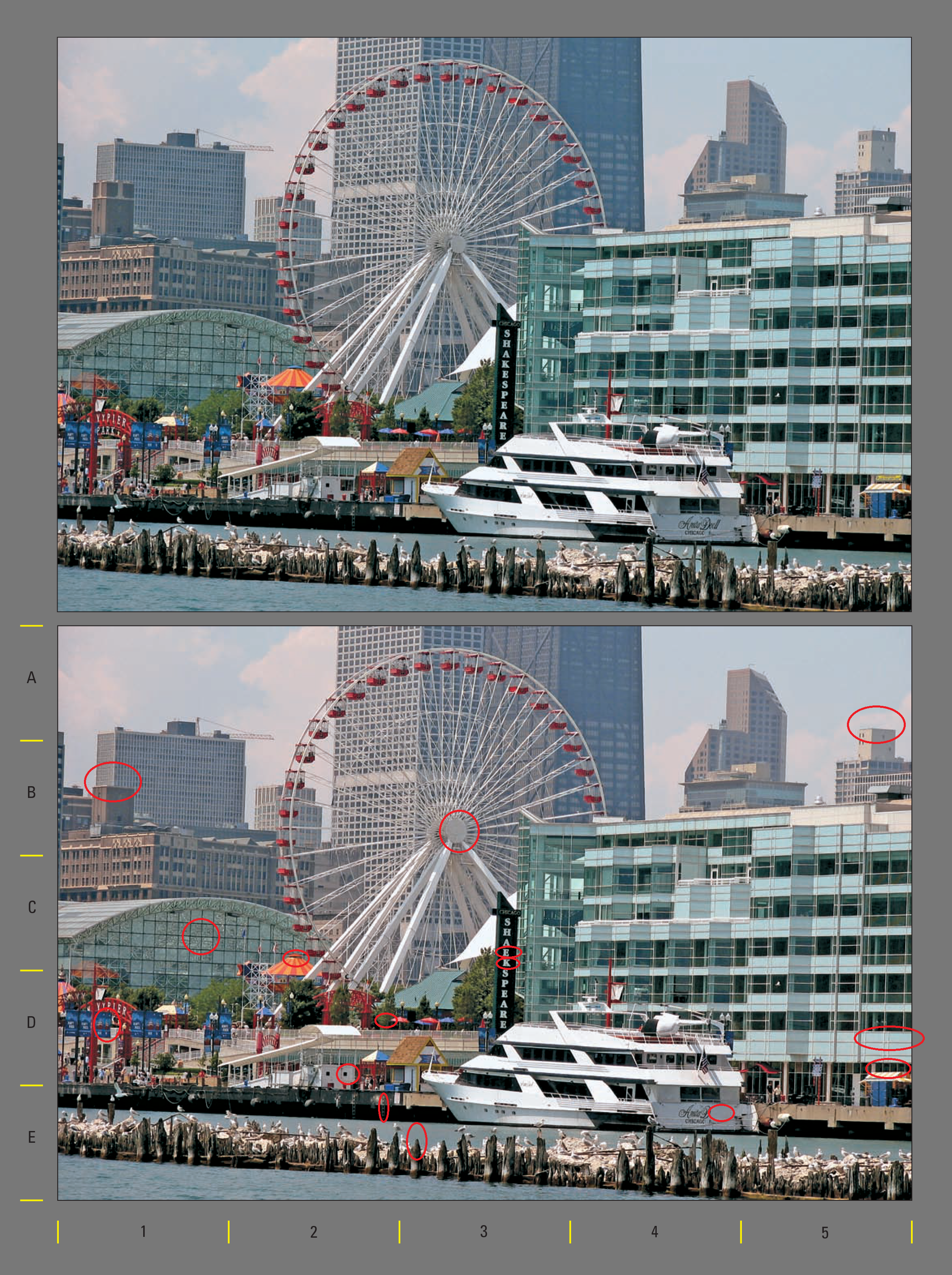
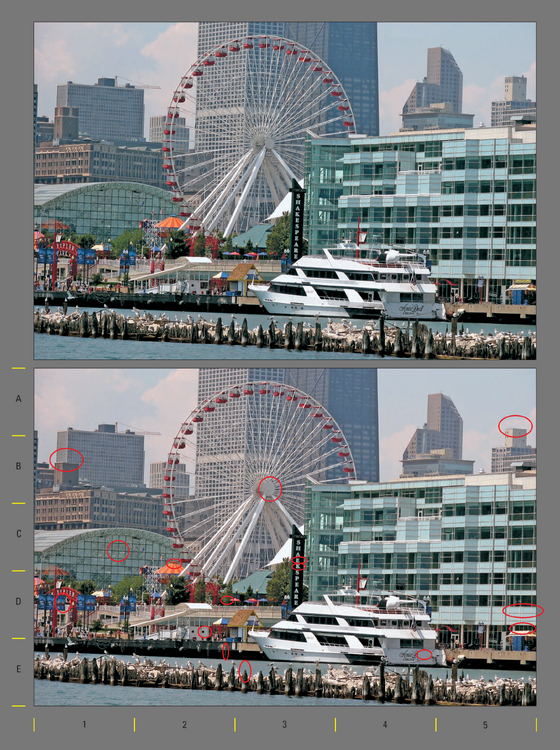
Here are the differences I found 🙂 : (there's a red tint in 2nd image too, if that is considered as a difference)
-
Thanks for sharing.
-
I thought that was some kind of error , I didn't thought that brightness diff.. is an actual difference, that was hard😅
-
Replying to see hidden content 😁
-
12,26,34,56,72
-
My Answer(I would stick to this one😁) -> Jenny - Donuts - Boxing - 20 Tim - Cookies - Karate - 13 Carl - Muffins - Treadmill - 27 Olivia - Popcorn - Walking - 34 Rachel - Pretzels - Yoga - 24 But it doesn't quite fit with clue 6. #Other Possibility -> Jenny - Donuts - Boxing - 20 Tim - Cookies - Karate - 13 Carl - Popcorn - Treadmill - 27 Olivia - Muffins - Walking - 34 Rachel - Pretzels - Yoga - 24 But this one doesn't fits with clue 4(until there is a mistake in clue 4).
-
14,19,45,54,76
-
I mean like all alphabets to the first of each word