




DinoBaby
BenLotus Member
-
Joined
-
Last visited
Everything posted by DinoBaby
-
still.up?
-
Hala legit ? patingin naman! ?
-
working paba ? new method ba? haha patingin salamat pows!
-
Salamat! Ma try nga .More Power bossworking paba ? pahiram po muna . salamat!May i see the trick, thanks btw!waaaa hahah kakagising ko lang .patingin nga, im associated with Amazon as my client hahahahahahahpatinginin . salamatsssslost my simcard today. patingin ?Halaaaaaa nakaraan pa ko naghahanaaaaap ..SalamaaaatChecking on this one. Thank you for sharing !I checked it MS Office 2016. I have MS Office 2010 installed on my computer pala
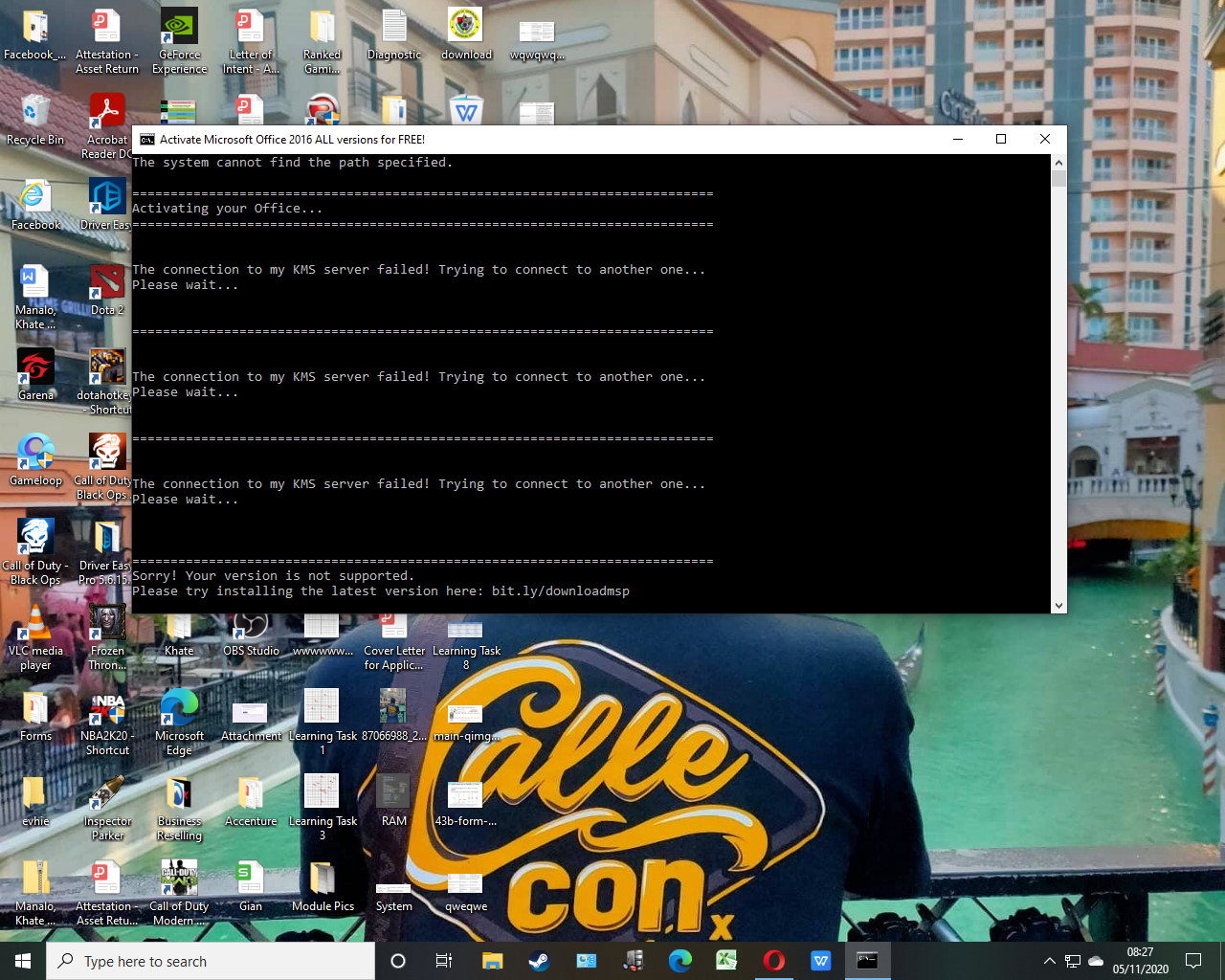
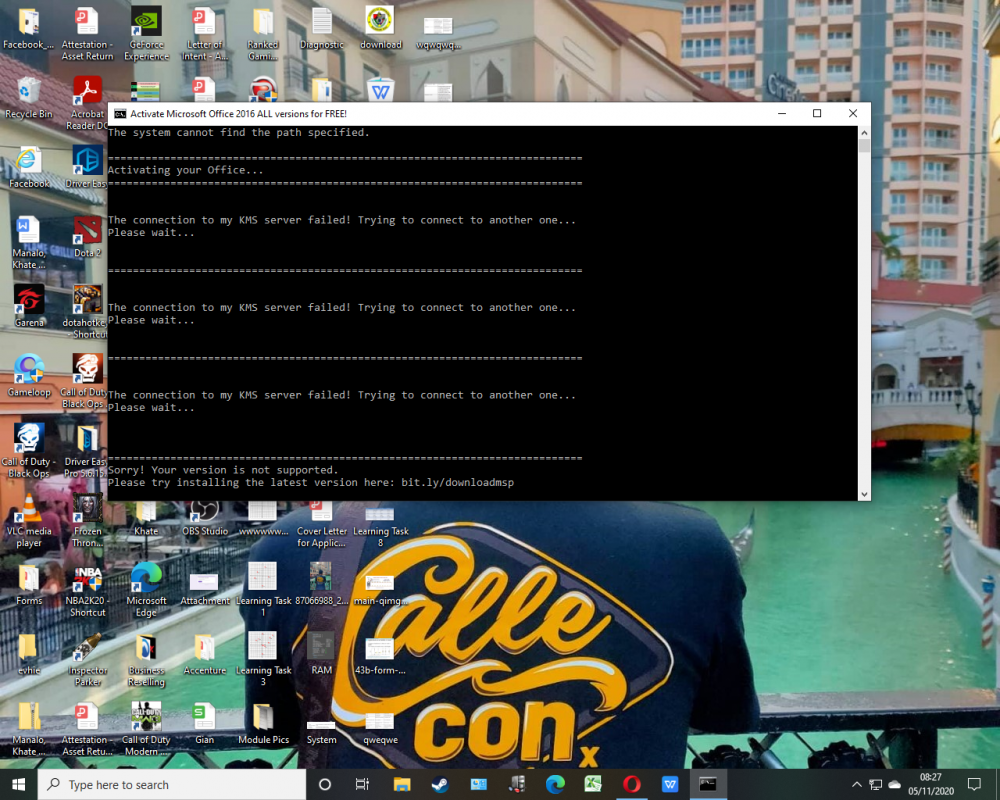 Hi need help with this one
Expired na sakin, thanks for sharing, this can be of helpBingo Card#22Salamat sa pag share, keep helping othersMay i see ? Hope it comes handy with me , my last day on my job is the end of month.
Hi need help with this one
Expired na sakin, thanks for sharing, this can be of helpBingo Card#22Salamat sa pag share, keep helping othersMay i see ? Hope it comes handy with me , my last day on my job is the end of month.



Account
Navigation
Search
Configure browser push notifications
Chrome (Android)
- Tap the lock icon next to the address bar.
- Tap Permissions → Notifications.
- Adjust your preference.
Chrome (Desktop)
- Click the padlock icon in the address bar.
- Select Site settings.
- Find Notifications and adjust your preference.
Safari (iOS 16.4+)
- Ensure the site is installed via Add to Home Screen.
- Open Settings App → Notifications.
- Find your app name and adjust your preference.
Safari (macOS)
- Go to Safari → Preferences.
- Click the Websites tab.
- Select Notifications in the sidebar.
- Find this website and adjust your preference.
Edge (Android)
- Tap the lock icon next to the address bar.
- Tap Permissions.
- Find Notifications and adjust your preference.
Edge (Desktop)
- Click the padlock icon in the address bar.
- Click Permissions for this site.
- Find Notifications and adjust your preference.
Firefox (Android)
- Go to Settings → Site permissions.
- Tap Notifications.
- Find this site in the list and adjust your preference.
Firefox (Desktop)
- Open Firefox Settings.
- Search for Notifications.
- Find this site in the list and adjust your preference.