Skip to content
View in the app

A better way to browse. Learn more.

BenLotus

A full-screen app on your home screen with push notifications, badges and more.

To install this app on iOS and iPadOS
  1. Tap the Share icon in Safari
  2. Scroll the menu and tap Add to Home Screen.
  3. Tap Add in the top-right corner.
To install this app on Android
  1. Tap the 3-dot menu (⋮) in the top-right corner of the browser.
  2. Tap Add to Home screen or Install app.
  3. Confirm by tapping Install.

-KHAN-

MovieBox Uploader
  • Joined

  • Last visited

Everything posted by -KHAN-

  1. Congratulations @Jaixx26. Thanks for hosting this @Cosmic
  2. Welcome Welcome Welcome Welcome Welcome Welcome Welcome Welcome. Avoid short reply less than 9 character
  3. Thanks for sharing
  4. Welcome Welcome. This trick is only for those who received youtube premium invitation from a different country like if you are from Philippines and received invitation from country other than Philippines. So, check it and if needed , apply this trick . It is always working
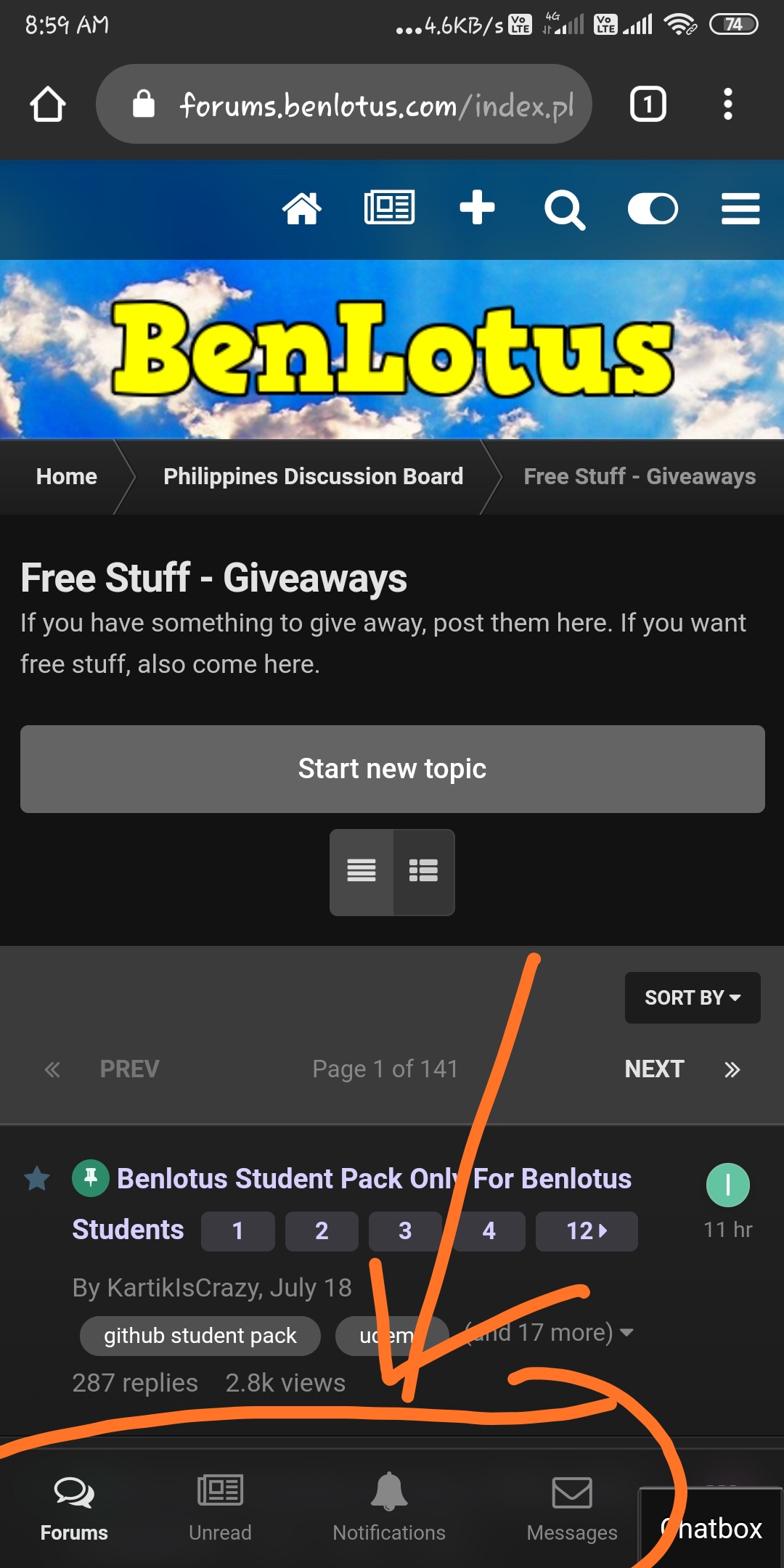
  5. yeah, done. These navigation bar buttons worked for 1 min 5 minutes earlier but later now again not working. try to fix if possible
  6. These buttons are not working. Seems these are not active
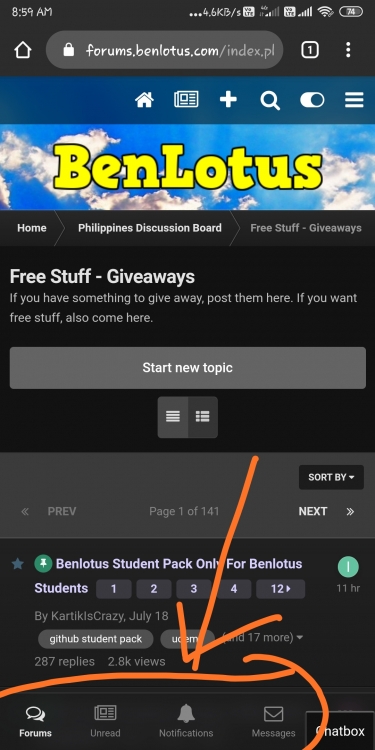
  7. Thanks for the updates. I am unable to use the new buttons (like message, notification ) added in mobile screen
  8. ah!! thanks for sharing brother
  9. Pasilip po. Thanks for sharing
  10. Thanks for sharing ?
  11. Server down. Lol!!
  12. Thanks for sharing idol.
  13. I am gonna check it definitely. Thanks for sharing
  14. Wow..huhuu..Today is a great day

Account

Navigation

Search

Search

Configure browser push notifications

Chrome (Android)
  1. Tap the lock icon next to the address bar.
  2. Tap Permissions → Notifications.
  3. Adjust your preference.
Chrome (Desktop)
  1. Click the padlock icon in the address bar.
  2. Select Site settings.
  3. Find Notifications and adjust your preference.