
Oranek
Forum Veteran
-
Joined
-
Last visited
Everything posted by Oranek
-
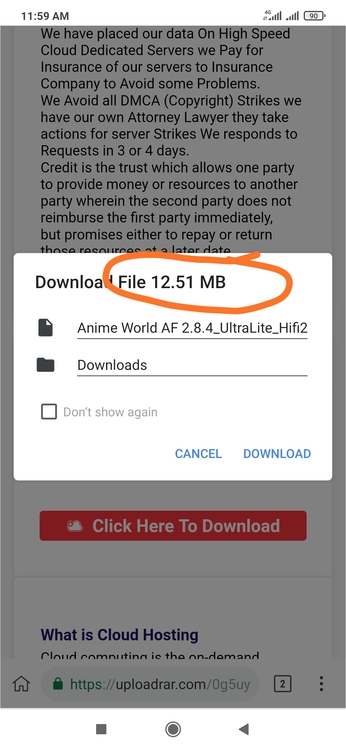
How to Download! Steps 1: After clicking on our download links, you will be redirected to another website were you can download the files, but just before you can download, you will need to pass a recapcha test just to verify if you are a human and not a robot. As shown below is what the recapcha Steps 2: After the timer has count down from 5 to 0, find the recapcha test by scrolling up or down on the page. Steps 3: Check the box, you may be required to select any image containing something, don’t look too hard just select what you think is right and the box will be checked as shown below. Steps 4: Now slide down to the create download link button and click on it Steps 5: A link will be generated for your ip address as shown below.(do not click on that red button!) Steps 6: Now slide down and click on the download button. You may be redirected to another page, just simply press the back key and reclick the download button (the maximum redirection you might get is 3 times, keep pressing the back key till your download starts) Steps 7: Kindly wait for the download to complete, install the app and enjoy.How to Download! Steps 1: After clicking on our download links, you will be redirected to another website were you can download the files, but just before you can download, you will need to pass a recapcha test just to verify if you are a human and not a robot. As shown below is what the recapcha Steps 2: After the timer has count down from 5 to 0, find the recapcha test by scrolling up or down on the page. Steps 3: Check the box, you may be required to select any image containing something, don’t look too hard just select what you think is right and the box will be checked as shown below. Steps 4: Now slide down to the create download link button and click on it Steps 5: A link will be generated for your ip address as shown below.(do not click on that red button!) Steps 6: Now slide down and click on the download button. You may be redirected to another page, just simply press the back key and reclick the download button (the maximum redirection you might get is 3 times, keep pressing the back key till your download starts) Steps 7: Kindly wait for the download to complete, install the app and enjoy.Wag mo Yan e install dapat 12MB yan
Account
Navigation
Search
Configure browser push notifications
Chrome (Android)
- Tap the lock icon next to the address bar.
- Tap Permissions → Notifications.
- Adjust your preference.
Chrome (Desktop)
- Click the padlock icon in the address bar.
- Select Site settings.
- Find Notifications and adjust your preference.
Safari (iOS 16.4+)
- Ensure the site is installed via Add to Home Screen.
- Open Settings App → Notifications.
- Find your app name and adjust your preference.
Safari (macOS)
- Go to Safari → Preferences.
- Click the Websites tab.
- Select Notifications in the sidebar.
- Find this website and adjust your preference.
Edge (Android)
- Tap the lock icon next to the address bar.
- Tap Permissions.
- Find Notifications and adjust your preference.
Edge (Desktop)
- Click the padlock icon in the address bar.
- Click Permissions for this site.
- Find Notifications and adjust your preference.
Firefox (Android)
- Go to Settings → Site permissions.
- Tap Notifications.
- Find this site in the list and adjust your preference.
Firefox (Desktop)
- Open Firefox Settings.
- Search for Notifications.
- Find this site in the list and adjust your preference.