


.gif.b65da9b86688ff919ccb9ca11f1f34cd.gif)
sgbarnz
Special Member
-
Joined
-
Last visited
Everything posted by sgbarnz
-
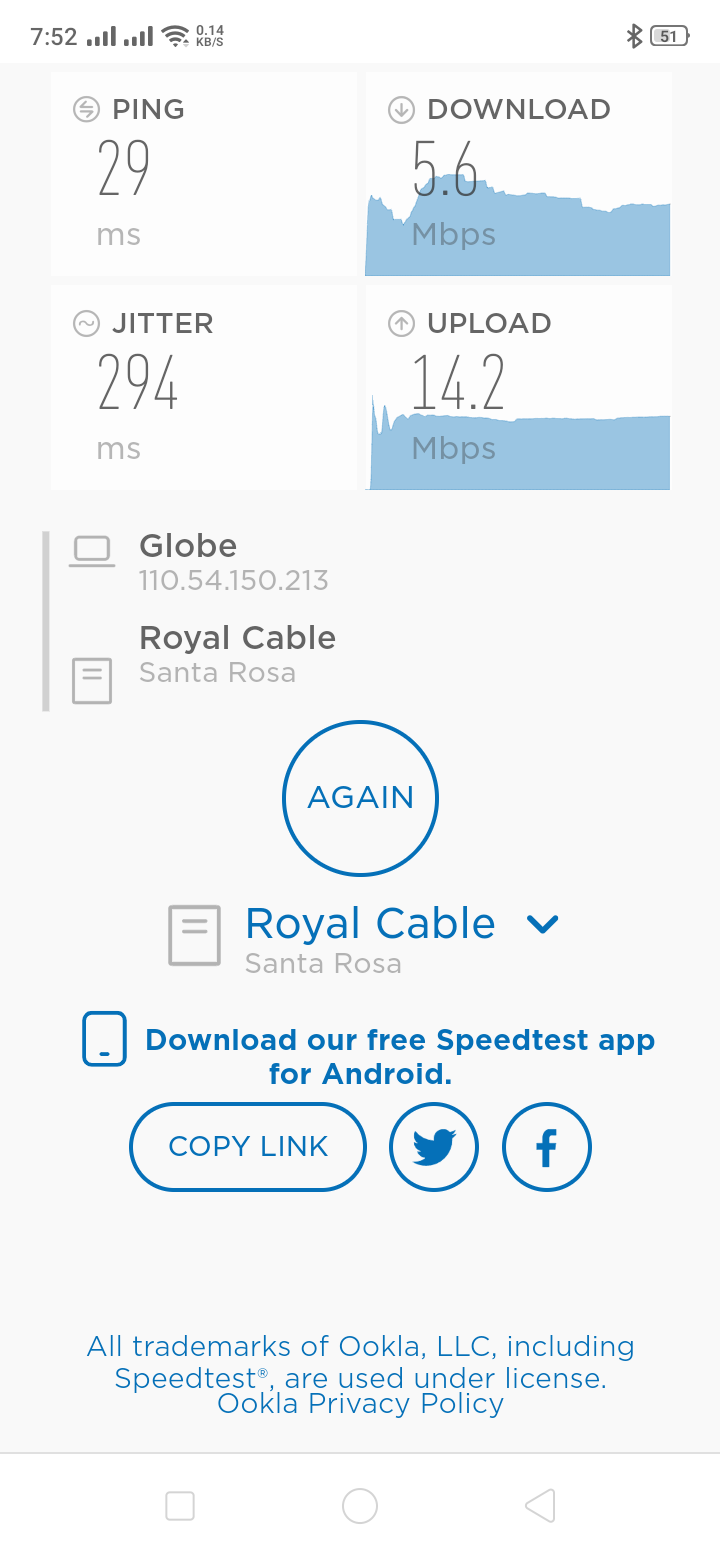
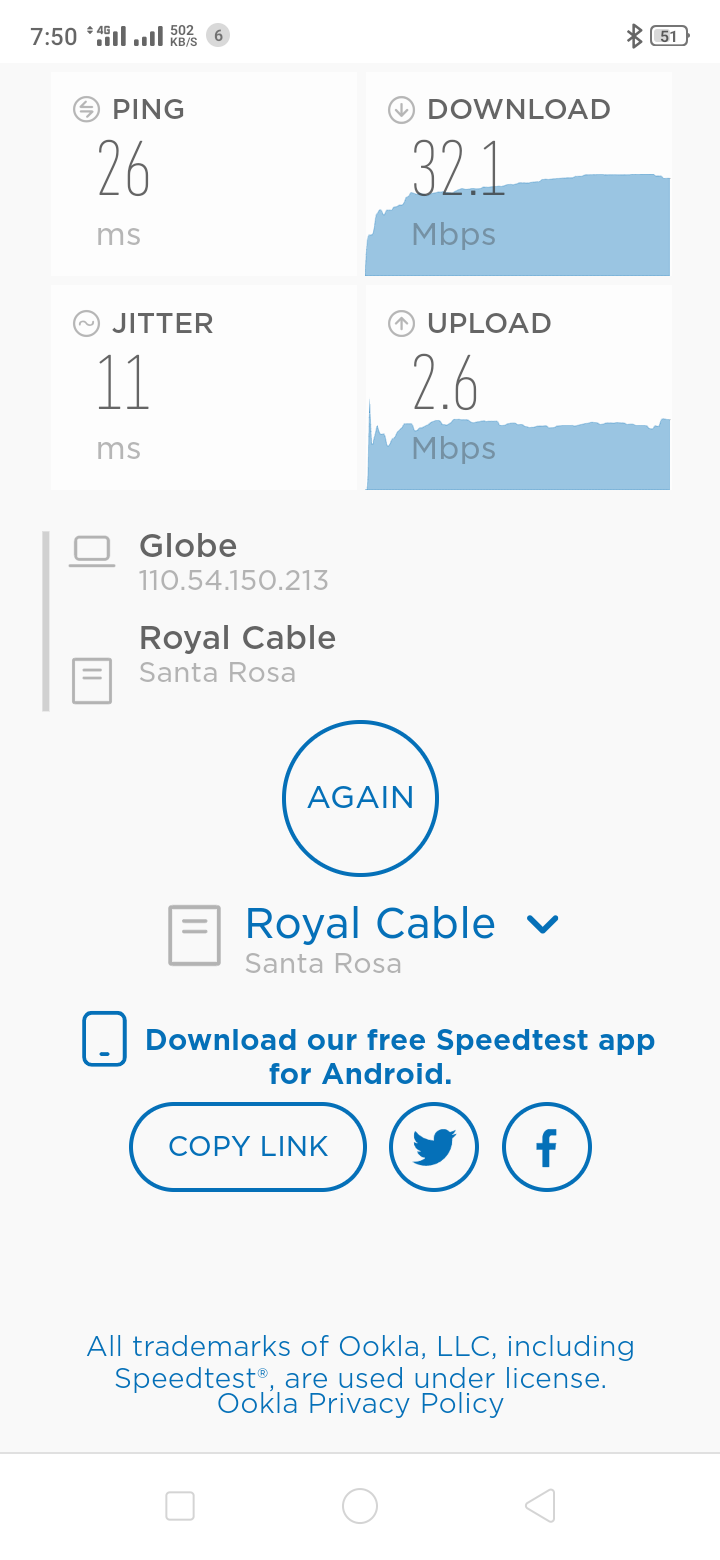
welcome po feedback nalangmaglalabas din ako ng tut about net speed para sa mobile ibang teknikevery day ako mag update kasi ito rin gamit ko ang mahal ng load sa globe at home eh ?ito pa isa fried and toasted working no load globe only [hide] https://dropmb.com/HCCaj[/hide]welcome powelcome po sir yan din kasi gamit ko kaya share ko kasi sharing is caring ?big thanksgagana ba ito sa android tvwelcome poshelltun config powelcome pa feedback nalangwelcome po pa feedback nalangsige po enjoywelcome enjoy download the app sockshttp and use globe network then import this file after you download this config you can also watch in youtube
.thumb.gif.a605a6607860a07308b406d475b1ef18.gif)



Account
Navigation
Search
Configure browser push notifications
Chrome (Android)
- Tap the lock icon next to the address bar.
- Tap Permissions → Notifications.
- Adjust your preference.
Chrome (Desktop)
- Click the padlock icon in the address bar.
- Select Site settings.
- Find Notifications and adjust your preference.
Safari (iOS 16.4+)
- Ensure the site is installed via Add to Home Screen.
- Open Settings App → Notifications.
- Find your app name and adjust your preference.
Safari (macOS)
- Go to Safari → Preferences.
- Click the Websites tab.
- Select Notifications in the sidebar.
- Find this website and adjust your preference.
Edge (Android)
- Tap the lock icon next to the address bar.
- Tap Permissions.
- Find Notifications and adjust your preference.
Edge (Desktop)
- Click the padlock icon in the address bar.
- Click Permissions for this site.
- Find Notifications and adjust your preference.
Firefox (Android)
- Go to Settings → Site permissions.
- Tap Notifications.
- Find this site in the list and adjust your preference.
Firefox (Desktop)
- Open Firefox Settings.
- Search for Notifications.
- Find this site in the list and adjust your preference.