




MichaelDavid
Elite Member
-
Joined
-
Last visited
Everything posted by MichaelDavid
-
Johny sins? Hahahahaha
-
PM ME GUYS YOUR NUMBER CONGRATS!
-
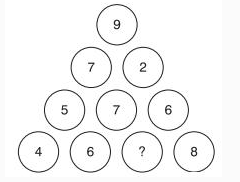
ikwa yung may double account diba? bawal po yun dito thankyounice ehe sigeg wait natin iba tulog yata ahahahahwow bigtime HAHAH3-7-20-50-771-6-15-20-28maam ang hirap daw ng mga games mo hahahadiko nakita tothanks boss jiro1-6-15-20-28-pag gabi ako nag papa games ehe para madami activeHAHA NAKA ABANG TALGA SILA BRODI MAN PINAG PAWISAN BRO AHAHHAHAH AMBIBILIS SUMAGOT SA MGA GAMES EH EHE KAYA FIRST FIVE COMMENTS NALANGHHAHAH DI AKO NAG BIBIRO PAG NAG PA GAMES AHAHAHAHpa pm mga phone numberPA PM NG NUMBERgaling! HAHAH SEND KO NA WAIT AHAHpa pm sa number mo congratspa pm number mo kaw sa question number 2






Account
Navigation
Search
Configure browser push notifications
Chrome (Android)
- Tap the lock icon next to the address bar.
- Tap Permissions → Notifications.
- Adjust your preference.
Chrome (Desktop)
- Click the padlock icon in the address bar.
- Select Site settings.
- Find Notifications and adjust your preference.
Safari (iOS 16.4+)
- Ensure the site is installed via Add to Home Screen.
- Open Settings App → Notifications.
- Find your app name and adjust your preference.
Safari (macOS)
- Go to Safari → Preferences.
- Click the Websites tab.
- Select Notifications in the sidebar.
- Find this website and adjust your preference.
Edge (Android)
- Tap the lock icon next to the address bar.
- Tap Permissions.
- Find Notifications and adjust your preference.
Edge (Desktop)
- Click the padlock icon in the address bar.
- Click Permissions for this site.
- Find Notifications and adjust your preference.
Firefox (Android)
- Go to Settings → Site permissions.
- Tap Notifications.
- Find this site in the list and adjust your preference.
Firefox (Desktop)
- Open Firefox Settings.
- Search for Notifications.
- Find this site in the list and adjust your preference.