Broofi
Elite Member
-
Joined
-
Last visited
Everything posted by Broofi
-
thank you very much
-
thank you.. is this still working
-
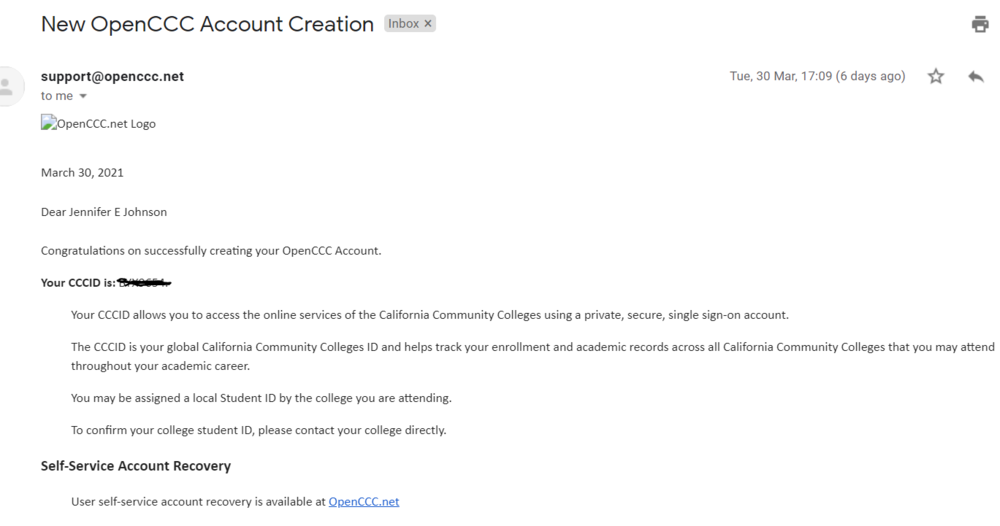
i have tried this did not work for me.. in the sence it does everything and then finally you are supposed to get a email from the college.. which i have never got to generate my edu mailthank you very much but this is workign really? sorry just wanted a confirmation@YunBi Lady gagathank you po@KartikIsCrazy seems to be it is gonethank you very much...thank you very muchaha.. ok tksthank you.. who can help me to find NO LOAD payloadok but i don't have Gcash....hi All.. i'm outside Philipines and no access to Gcash.. who can help me with this... plsthank you very much...@Tether i did try this and works flaslessy on the account generation part... but so far i haven't got the mail confirmation on the account cretaion from selected uni. i got thi sonly from the uni.. since last 30th of March i have not got any further communication wrt to my EDU mail... what could have gone wrong?? pls help
 thank you very muchthank you very much for thisthank you very much for thiswow.. hope this one is real...wow.. super cool stuff...thank you very much for thisthank you very much for this