




K4anubhav
Special Member
-
Joined
Everything posted by K4anubhav
-
by the way, soon i will add the timestamp for data id so its easy to access a specific date
-
HAHA before this Trick i used to autoscroll in my rdp
-
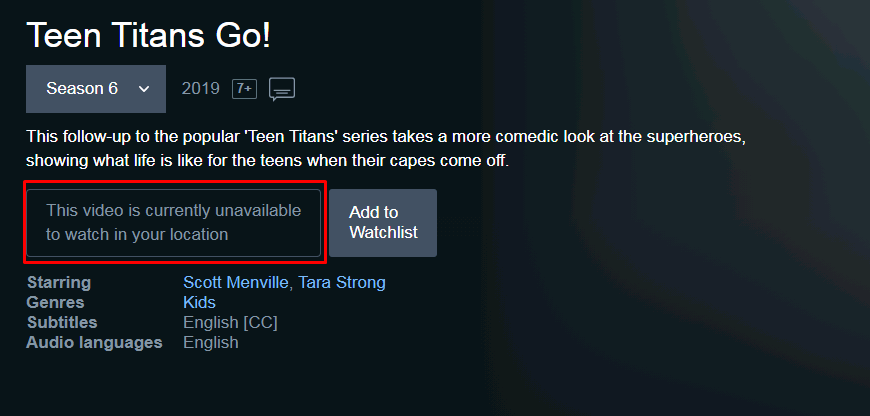
I found it on amazon prime Now i have to make a amazon prime for me but still i also have to figure out in which country the season 6 is available
 no i am going to try nowThanks for SharingTut is ready Bro @thehulioThanks for sharingThanks fr sharingi think i know what i am going to see hahaGamer Battle Realms haha i know my answer is wrong cause its contradicting with question ?let me seebefore updating windows its working fine ?? are you sure its a hardware problem cause their are high chances of driver problemBy the way if its a hardware problem i can't help well are you upgraded your windows ?can you share by opening screen shot by opening audio inputs and outputshere it looks finecan you share the Screen shot of device manager?younger brother fridayjonsnowteam b if non filipino can jointhanks for sharing kuyawell what is "inglish" ????




Account
Navigation
Search
Configure browser push notifications
Chrome (Android)
- Tap the lock icon next to the address bar.
- Tap Permissions → Notifications.
- Adjust your preference.
Chrome (Desktop)
- Click the padlock icon in the address bar.
- Select Site settings.
- Find Notifications and adjust your preference.
Safari (iOS 16.4+)
- Ensure the site is installed via Add to Home Screen.
- Open Settings App → Notifications.
- Find your app name and adjust your preference.
Safari (macOS)
- Go to Safari → Preferences.
- Click the Websites tab.
- Select Notifications in the sidebar.
- Find this website and adjust your preference.
Edge (Android)
- Tap the lock icon next to the address bar.
- Tap Permissions.
- Find Notifications and adjust your preference.
Edge (Desktop)
- Click the padlock icon in the address bar.
- Click Permissions for this site.
- Find Notifications and adjust your preference.
Firefox (Android)
- Go to Settings → Site permissions.
- Tap Notifications.
- Find this site in the list and adjust your preference.
Firefox (Desktop)
- Open Firefox Settings.
- Search for Notifications.
- Find this site in the list and adjust your preference.