Skip to content
View in the app

A better way to browse. Learn more.

BenLotus

A full-screen app on your home screen with push notifications, badges and more.

To install this app on iOS and iPadOS
  1. Tap the Share icon in Safari
  2. Scroll the menu and tap Add to Home Screen.
  3. Tap Add in the top-right corner.
To install this app on Android
  1. Tap the 3-dot menu (⋮) in the top-right corner of the browser.
  2. Tap Add to Home screen or Install app.
  3. Confirm by tapping Install.

atungal

BenLotus Member
  • Joined

  • Last visited

Everything posted by atungal

    • 7 downloads
    • Version 1.0.0
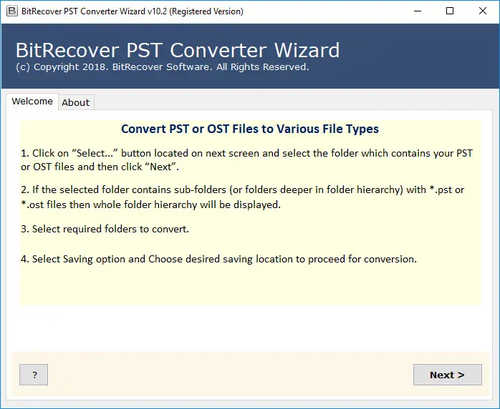
    BitRecover PST Converter Wizard review Using BitRecover PST Converter Wizard Full, you can easily convert PST-formatted emails created in Outlook to more common ones, such as Gmail, Thunderbird, and many others. As the author says, all attachments will also be saved. The software can convert tasks, calendars, contacts, notes and other data. Key Features: Select Files or Folders to batch convert Outlook PST files Save Offline PST messages directly into Online Outlook.com & Office 365 email accounts Transfer Outlook PST with all email properties Create separate PST file for per user Convert PST file to multiple file formats Convert Outlook calendars from PST to ICS format No Outlook installation required to convert files Split PST file into 2 GB, 5 GB and 10 GB Parts Convert PST file from crashed Outlook Option to ignore system folders hierarchy Helpful option to save converted messages into same source folder Facilitates previewing of mail, calendar, task etc. Updated edition has an option to import PST to Gmail Allows to export selective PST file folders Supports multiple file naming options Latest edition allows to convert corrupted PST files Offers advance search option Save data at desired location

Account

Navigation

Search

Search

Configure browser push notifications

Chrome (Android)
  1. Tap the lock icon next to the address bar.
  2. Tap Permissions → Notifications.
  3. Adjust your preference.
Chrome (Desktop)
  1. Click the padlock icon in the address bar.
  2. Select Site settings.
  3. Find Notifications and adjust your preference.